Installing Lavender for Outlook on a PC
Пошаговая инструкция по установке надстройки Lavender для Outlook на ПК. Описаны системные требования: Windows 10 или 11 и Microsoft 365 уровня Business Standard или выше (Business Basic не поддерживает надстройки для Outlook Desktop). Процесс включает открытие Outlook, переход в Tools → Get Add-ins, выбор My Add-ins, загрузку XML-файла Lavender через «Add from File» и установку. Файл подходит как для Legacy, так и для New Outlook. Также описаны шаги для обновления, переустановки и удаления надстройки, а также рекомендации по устранению неполадок и обращению в support@lavender.ai при необходимости.

Installing Lavender for Outlook on a PC
🛠️ Note: Installing Lavender for Outlook on PC can vary depending on your setup — we’re here to help if things get tricky.
✅ Requirements
To install Lavender successfully, you must have:
📥 How to Install the Lavender Add-In (Manual Setup)
1. Open Outlook on your PC
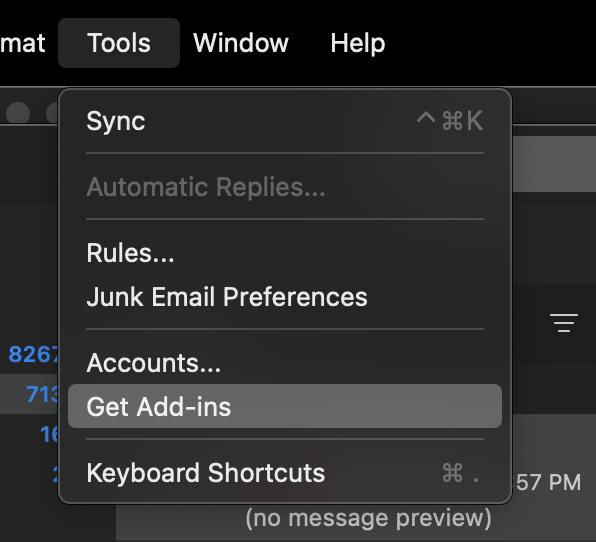
Navigate to Tools → Get Add-ins
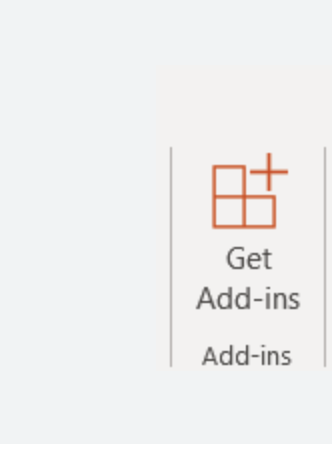
You may also see the add-ins icon in your toolbar (🧩)
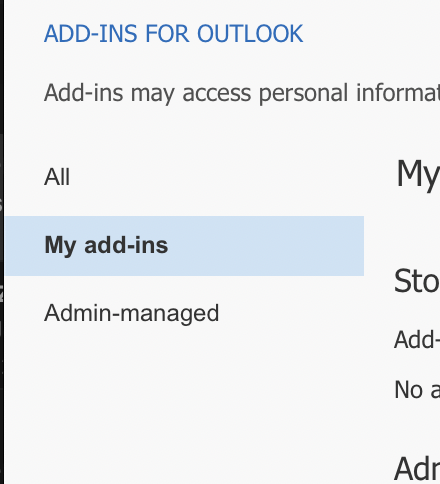
2. Go to “My Add-ins”
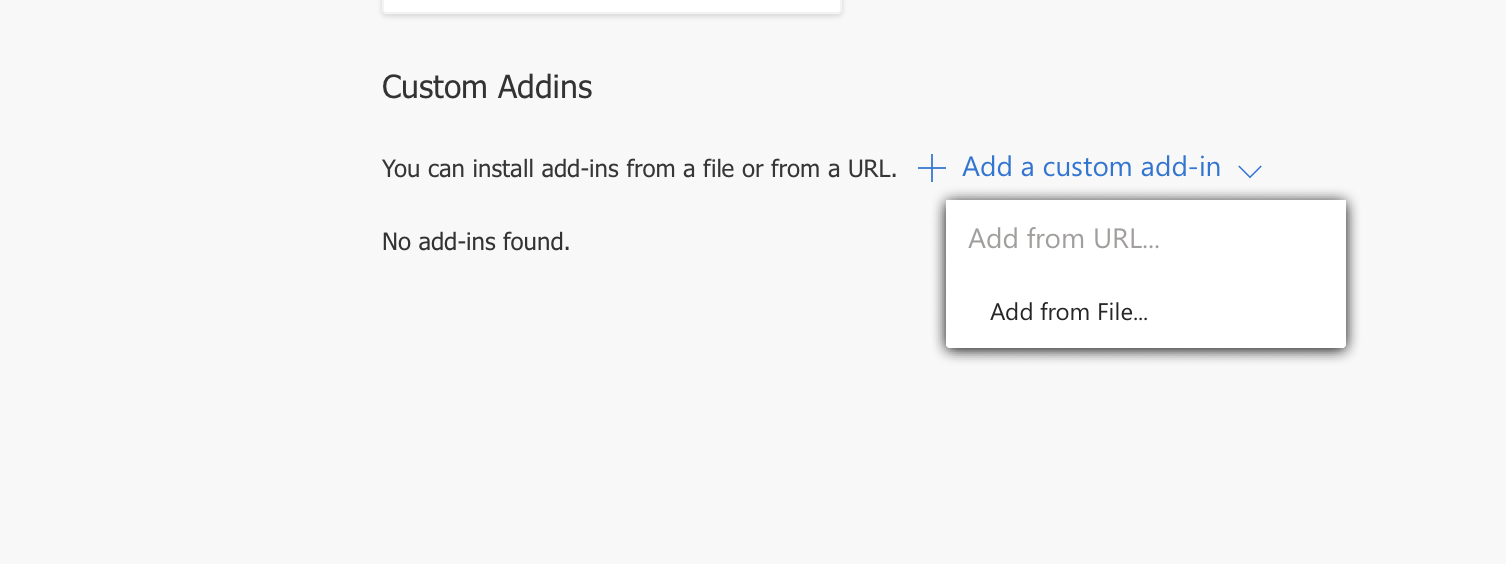
Scroll down to Custom Add-ins
Click “Add from File”
3. Upload the Lavender Add-in File
📄 Click here to download the .XML file
This file supports both Legacy and New Outlook views.
4. Click “Install”
Lavender should now appear in your Outlook inbox.
If it’s not immediately visible, try opening a New Message and pinning the add-in from the toolbar.
🔁 Need to Update or Reinstall?
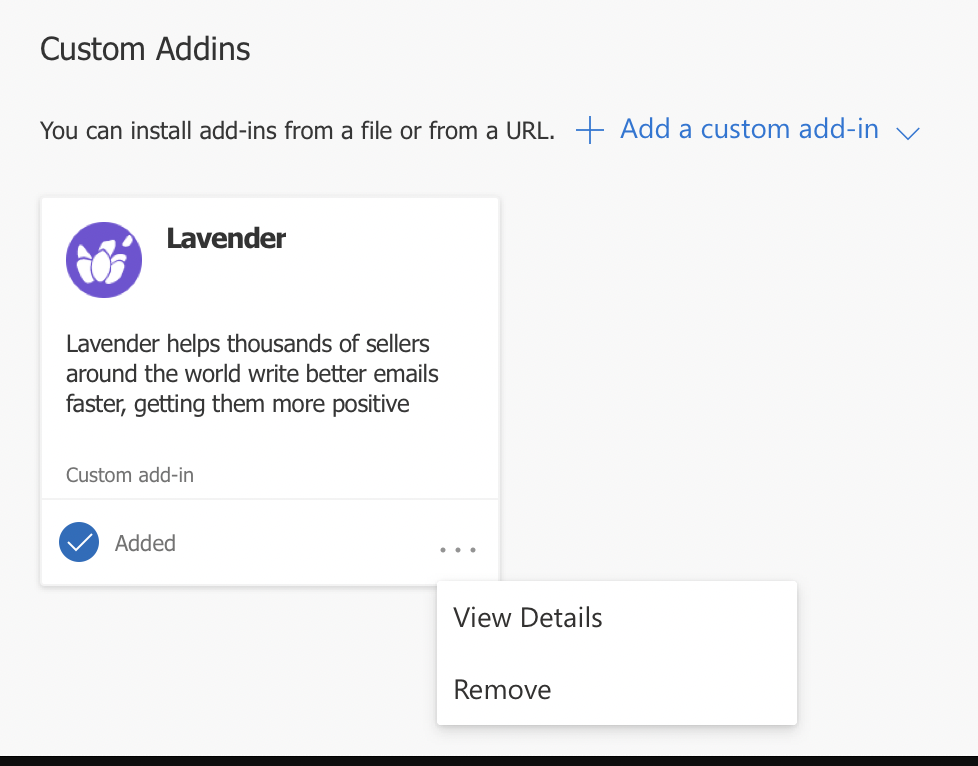
Get Add-insMy Add-insCustom Add-ins... menuRemoveThen, re-add the latest version using the steps above.
❗Troubleshooting Notes
1. Open Outlook and navigate to Tools > Get Add-ins
You may also see this icon 👇
2. Navigate to My add-ins
3. Scroll to custom add-ins, select Add from File
4. Download the Outlook integration .xml file and add the file
You can find the file at the bottom of this page or by clicking here.
5. Click install, then you'll see Lavender added!
6. Once back in your inbox, open a New Message to see the Lavender add-in.
Note: You may need to pin the add-in.
For troubleshooting steps, check this article.
Uninstalling the Add In
If you need to install a new version of Lavender for Outlook, follow these steps (screenshots above)
Please know there are a lot of nuances to PC Add-Ins. It is not our intention provide misleading instructions, but many versions of Outlook are different, making it difficult to be one size fits all.
Please reach out to support@lavender.ai if you need additional help.
Outlook file 👇
This file will work for Legacy and New Outlook
About the Author